
Introduction
Having an email marketing account locked can be especially annoying when running email marketing campaigns during a busy day and you want to check and respond to your subscribers’ activity and check the performance of the campaigns and make changes to the web pages or landing pages you have created.
For MailerLite users, most account-access issues can be easily resolved. The key is to determine the actual issue. A forgotten password, mistyped email address, a browser issue, a two-factor authentication issue, and the loss of the account email will require different approaches to resolve.
MailerLite has an official account login page for users to log in using their email and password. The current login page has also offered other ways to authenticate including Google, Apple, Microsoft, and GitHub.
This MailerLite login help guide provides details on how to log in to your account, what to try when login fails, how to reset a forgotten password, how to fix browser issues, and what to do when other methods have failed.
Other topics include account security, two-factor authentication, shared accounts, suspicious activity, logins on different devices, and other issues that may interrupt your account access.
What Is MailerLite?
MailerLite is a popular email and digital marketing tool, and is used by businesses, creators, freelancers, bloggers, online stores, agencies, and organizations among many.
Depending on the account, users can access tools for:
- Email newsletters
- Marketing campaigns
- Subscriber management
- Automation
- Signup forms
- Landing pages
- Websites
- Reports
- Domains
- Account management
Since several essential marketing functions are managed from a single account, access to that account should be reliable.
A MailerLite account allows for greater business and customer engagement through subscriber data management. Safeguarding your account is critical.
Where Can You Access The Official MailerLite Login?
You can access MailerLite’s official account login system at:
MailerLite Account Login
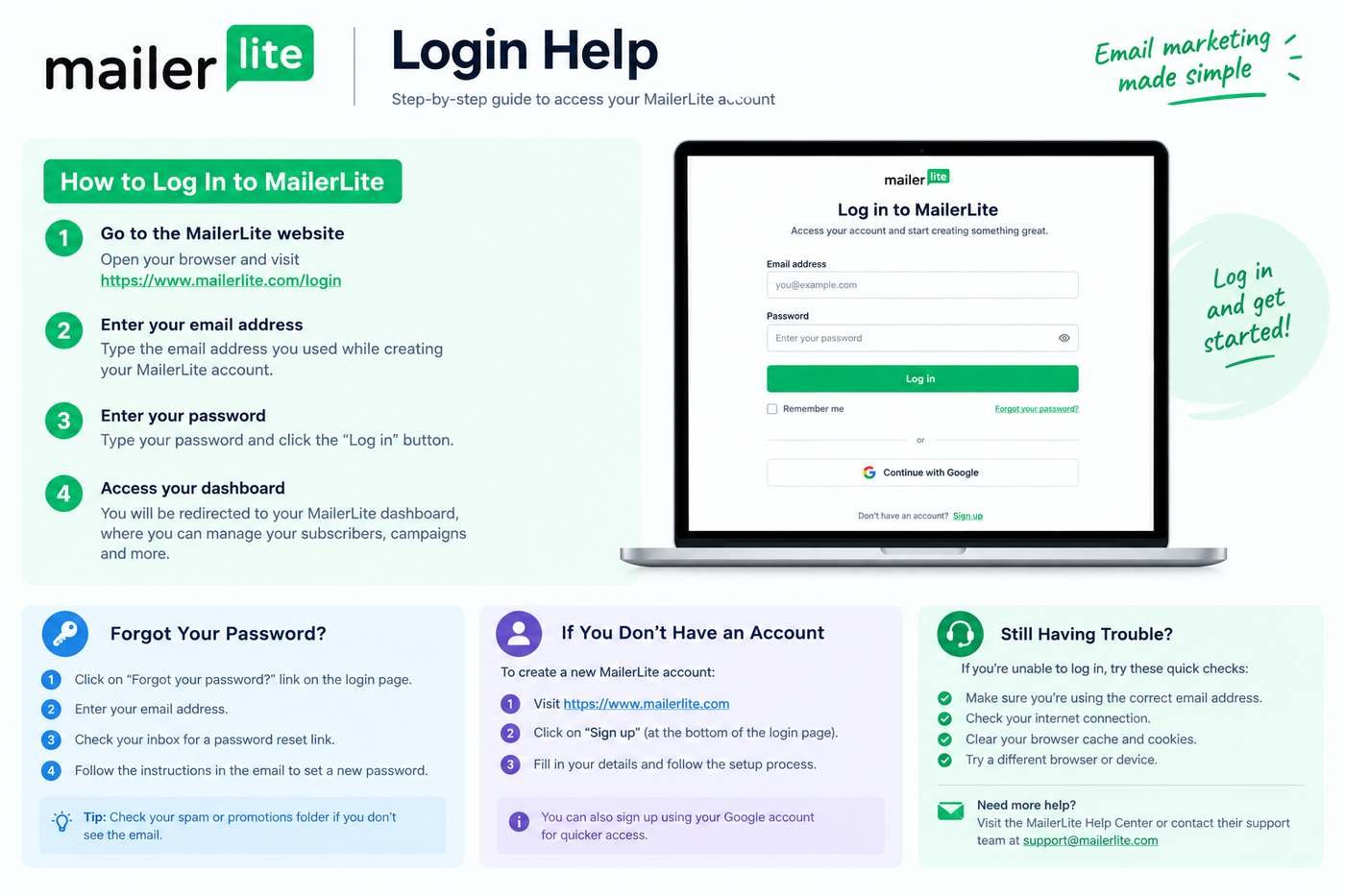
As of now, their login page contains, an email address section, a password section, a password recovery link, and options to sign-in with other accounts.
It is recommended to navigate directly to the MailerLite website if you want to sign in to your account instead of entering your credentials on some unfamiliar web page.
You can also save the official account page on your web browser to allow you to sign-in with less hassle while protecting you from the (potential) fraud of a false login page.
MailerLite Login Help: The Basics
If you already have an account and know your credentials, logging in is very quick.
Open the Official Account Page
Open MailerLite’s login page on your preferred web browser.
You should take a moment to check the website address before typing anything.
This is an important step, as it is not uncommon for phishing websites to create a page that looks exactly like a login page for a legitimate service.
Enter Your Email Address
Type the email address for your MailerLite account (and ensure the spelling is correct).
For example, if your account was created with:
marketing@example.com
you would need to enter that address, and you would also need to enter that address if you have not updated your login email.
Enter Your Password
Type your password (remember, it is case-sensitive).
You should also check that there are no accidental spaces (especially if you are using a copy and paste method), and that Caps Lock is off.
Sign In
Select the sign-in option.
You should be able to access your MailerLite account if your credentials check out.
You may have to take an additional security step if your account has more security measures.
Why Am I Unable to Access MailerLite?
There are various reasons you may not be able to log into MailerLite.
Some of the more common reasons are:
- Using the wrong email
- Entering the wrong password
- Forgot password
- Caps Lock is on
- Old browser saved password
- Browser cache
- Browser cookies
- Browser extensions
- Internet connection
- Two-factor authentication issues
- Can’t access the email the account is registered to
- Account is flagged for suspicious activity
- Old or inactive account
- Account is logged into MailerLite from another page
Start by checking for the more basic reasons.
First Check: Are You on the Correct MailerLite Login Page?
Make sure you are on the MailerLite login page before you reset the password or change browser settings.
Mailerlite’s login troubleshooting documentation recommends that users double check the login URL.
If the login page is bookmarked, delete the old bookmark and add the new official page.
This can help to avoid phishing as well.
Check your Email Address
Entering the wrong email address is one of the most common mistakes people make.
This happens most when you have multiple email accounts.
For example:
- Personal Gmail account
- Business Gmail account
- Work Microsoft account
- Old company email
- Client email
- Email that has a different MailerLite account
If you are not sure which account you logged into, search for emails from MailerLite in all of your email accounts.
You can find the following words in the customer service email:
- MailerLite
- Account
- Welcome
- Campaign
- Newsletter
- Verification
- Billing
Finding an old email from MailerLite can help you determine which email address to use for logging in.
Check Your Password
You need to ensure that your email and/or username is not the problem. It is possible that your password has also not changed.
Consider that you:
- Changed your password
- Updated your Internet browser
- Switched computers
- Changed your password manager settings
- Changed the email/username for your account
- Enabled more security for your account
A browser may still autofill a previously saved password, even if you have changed your password. Delete the autofill and input your current password.
Check if Caps Lock is on
This can be a simple problem but can cause an unnecessary account lock.
ExamplePassword123
and
examplepassword123
are not the same password strings.
Before logging in again, check the setting of the Caps Lock key.
A simple troubleshooting step for logging in to MailerLite is checking to ensure Caps Lock is set to off.
Forgot Your MailerLite Password?
Instead of guessing it, go through the password recovery process endorsed by MailerLite.
MailerLite Password Reset
Users can go to the current reset page and enter their MailerLite account email to receive a password reset link.
The common steps to reset your password are:
- Go to the password reset page.
- Enter your MailerLite account email.
- Complete the CAPTCHA.
- Request the reset link.
- Open your email and locate the email sent from MailerLite for the reset.
- Follow the steps to reset your password.
- Return to the login page and login using the new password.
What Should You Do If You Don’t Get The Password Reset Email?
If you request to reset your password and get no email, do not keep requesting it.
Check Your Email
Check Your Spam
Some automated messages get trapped by the spam filter.
Check Your Promotions Tab
If your email provider sorts your email into tabs, automated messages may be in the Promotions tab or another tab.
Search For MailerLite
Use the search function of your email provider. You may have better luck searching for “MailerLite” than browsing your email.
Verify Your Email Address
Be sure you are using the correct email.
Requesting the reset from a different address
If you have multiple email accounts, you may have requested the password from the wrong email account.
Be Patient
Wait a few minutes for the automated message.
Submit a Support Request
Use MailerLite’s support request process to recover your account.
MailerLite Login Troubleshooting Guide suggests that if you follow the directions in their documentation and still cannot log in, you should submit a support request via the contact us process and choose the login support category.
Help for MailerLite Login Issues Related to Your Browser
Problems can occur that are specific to the browser you are using to access MailerLite.
Your browser may hold outdated or corrupted:
- Cookies
- Cache
- Saved login sessions and passwords
- Website preferences
Trying another browser is a good way to test for a browser-related issue.
If, for example, you normally use Chrome to access MailerLite, try using Firefox or Edge.
If the issue is resolved in a different browser, the problem is likely with the original browser.
Here is a list of potential areas you can investigate:
- Cookies
- Cache
- Extensions
- Saved passwords
- Browser settings
When login issues continue to occur, MailerLite suggests using a different browser, and using Private Browsing mode is another good option. You can also try Incognito or Private Browsing by opening a private browsing window, and going to the MailerLite login page. Manually enter your credentials. If your account works while using Private Browsing, the cause of the issue is in your normal browsing environment, and could be any of the following:
- Cookies
- Extensions
- Cached data
- Saved sessions
Clearing Cached Data
If the MailerLite login page is not displaying correctly or is behaving strangely, try clearing your cached data.
This is found in your browser’s settings and can be labeled browser history, privacy, or any variation of those terms. You will have the option to remove:
- Cached Data
- Cookies
- Site Data
You will not have to remove all data, especially if your browser allows you to remove MailerLite site data specifically.
Check Browser Extensions
Browser Extensions can also have an impact on functionality of a site. These can be:
- Ad blockers
- Script blockers
- Privacy tools
- Security tools
- Password tools
- Page-modifying tools
To troubleshoot, remove all extensions, and attempt to log in. If the login works, continue to enable extensions until you find the problematic extension.
Check Your Internet Connection
A slow or unreliable internet connection will also prevent your browser from completing a log in. You can confirm normal browser functionality by visiting other sites, and if they are also experiencing issues, take one of the following actions:
- Restart your router
- Connect to a different network
- Use a mobile hotspot
- Restart your device
If other sites are working, continue to troubleshoot issues related to logging in to MailerLite.
Observe with a Different Device
Using MailerLite on different devices can help you troubleshoot issues.
For example:
If you can log in on the phone but not on the desktop:
The issue could be either the desktop browser or the desktop itself.
If you can log in on the desktop but not on the phone:
The issue could be the mobile browser or the mobile network.
If you fail to log in on both devices:
The issue could be with the account itself, or with the credentials or authentication.
This test is very simple but very useful.
MailerLite Google Login
Google is one of the external sign-in methods on the current MailerLite log-in page.
If you connected your MailerLite account to Google and you want to use Google, follow the prompts.
Be careful of using the correct Google account if you have multiple Google accounts.
MailerLite Apple Login
Apple is another external authentication method on the current MailerLite account page.
To sign in with Apple, select Apple and follow the authentication prompts.
Make sure you use the Apple account that is associated with your MailerLite account.
MailerLite Microsoft Login
Microsoft is another external sign-in method on MailerLite.
This is helpful for users whose marketing activities are integrated with a Microsoft account.
Make sure you select the correct Microsoft account to access the expected MailerLite account.
MailerLite GitHub Login
GitHub is also an external sign-in method on the current MailerLite account page.
If you use GitHub authentication, make sure you are signing in with the correct GitHub account.
What Is the Remember Me Option?
Current MailerLite users are presented with the Remember me option on the MailerLite login page.
This feature can make logging in to MailerLite more convenient on your personal devices.
Be especially cautious on shared or public devices.
Do not select Remember me on:
- Library computers
- Internet cafe computers
- Public office computers
- Family computers
- Friends’ laptops
If the device can be used by others, you run the risk of exposing a signed in MailerLite account.
How to Change Your MailerLite Login Email
If you can access your MailerLite account, but would like to modify your login email, you can do this via your account settings in MailerLite.
Based on MailerLite’s latest guidelines, you need to go to My profile, select Login details, select Change email, enter your new email address, enter your current password, and complete the email verification.
This is useful if:
- Your business’ email provider has changed
- You set up the MailerLite account with your personal email account
- You changed your job and you want the account to be linked to your work email
- You are no longer using your old email account
It is definitely more convenient to change the email when you still have access, rather than waiting until you no longer have access.
How to Change Your MailerLite Password
If you want to change your password and you know your current one, you can do this via your profile in MailerLite.
According to the latest MailerLite guidelines, in order to change your password you have to do the following:
- Go to My profile
- Select Login details
- Choose Change password
- Enter your current password
- Enter your new password
- Re-enter your new password to confirm it.
- Save the changes.
MailerLite suggests changing passwords every 60 days for security.
What Makes a Good MailerLite Password
Good passwords are:
- Unique
- Hard to guess
- Long
- Not used for other accounts
- Do not contain guessable information
Good examples:
Does not include the name of:
- You
- Your business
- Your website
- Your birthday
- Your phone number
- Your address
- Your simple number sequences
Your password also should not include guessable number sequences. MailerLite suggests using letters, numbers and symbols in each password and that passwords are unique for each account.
Why Use a Password Manager?
When utilizing many services online, it can be impossible to remember unique passwords for each service.
A good password manager will:
- Store your passwords
- Generate unique passwords
- Autofill credentials
- Decrease password reuse
- Securely manage your passwords
Credential management is best done using a password manager, but be sure to use a very strong master password to secure it, alongside the other security measures.
MailerLite Two-Factor Authentication
Two-factor authentication adds another layer of security to your account.
Usually, MailerLite requires the account password and additional verifications to be provided.
This protects your account from unauthorized access in the unfortunate event that your password is leaked.
To follow MailerLite’s suggestions for account security, enabling 2FA is recommended.
What If You Cannot Access 2FA?
Usually, the standard password reset will not work if your password is correct, but you fail to complete two-factor authentication.
MailerLite’s existing login assistance advises users unable to use 2FA to visit the Contact Us page and to select the login-related support category.
Do not attempt to enter verification codes multiple times.
Instead, utilize the official account recovery system.
What If You No Longer Can Access Your Login Email?
This is another case where standard password recovery likely will not be sufficient.
Example: Your MailerLite account was created using the now-defunct email, name@oldcompany.com.
You may still know your password, but you will not be able to receive account recovery messages.
According to MailerLite documentation, the only option remaining is to contact support and tell them both your new and old email addresses. More account verification may be needed.
Do not send them your password.
Use the official recovery procedures.
What If Your MailerLite Account Was Created From Someone Else’s Account?
This scenario may occur when a business has hired a new employee.
For example, a marketing employee may have created the MailerLite account, and that employee has now left the business.
If that MailerLite account is vital to the business, access to that account should be done in a proper manner.
If you still have access to that employee’s account, send an email to the new account and update the user permissions.
MailerLite suggests individual users instead of relying on one employee’s credentials.
Offboarding Difficulties
You may have to change the shared password to everyone if a team member has quit.
Limited Responsibility
It is difficult to see who is responsible for making a specific change.
Greater Access
Team members using the same password may have different levels of access.
Where possible, use personalized user accounts.
MailerLite User Permissions
According to the latest MailerLite security documentation, these roles exist:
- Administrator
- Manager
- Viewer
- Accountant
- Custom users.
Different roles may provide different levels of access.
One example may be someone reviewing reports who does not need to have access to the admin controls.
What to Do If You Believe Access to Your MailerLite Account Has Been Compromised
There may be a number of reasons for difficulty logging in, including the potential for unauthorized access.
Look for signs of this, such as:
- Your password has been changed with no knowledge on your part.
- Campaigns have been created with no knowledge on your part.
- Your subscribers have been changed with no knowledge on your part.
- There have been imports with no knowledge on your part.
- You have strange notifications in your account.
- Settings have been changed with no knowledge on your part.
If you are concerned that access to your account is compromised, act quickly.
Security recommendations from MailerLite state to change your password and enable 2FA, review account activity, contact support, and do a malware check.
What to do after a potential account access compromise
Change Your Password
You should change your password to one that you have not used before on another site.
Enable 2FA
Provide an additional authentication step.
Review Your Account
Check on all account activity and review subscriber changes, campaigns, and settings.
Contact Support
You should report the incident.
Scan your Device
If you have malware on your device, changing your password may not be sufficient.
Do a full update on your operating system as well as your browser.
Beware of Phishing Emails Posing as MailerLite
Phishing attacks are not uncommon, and the fraudulent emails attempt to lure users into entering their credentials on false log-in pages.
Here are some fraudulent emails and their contents you may encounter:
- Account Suspended
- Billing Verification
- Password Expired
- Account Verification
- Account Accessed
Fraudulent emails may have links that log-in to false pages and may be designed to look like they came from MailerLite.
If you have any doubts about the credibility of the email, do not click any links and visit the MailerLite website directly.
MailerLite has identified phishing attacks as a possible case of compromised account security.
Is Accessing MailerLite Via Public Wi-Fi Safe?
Accessing your MailerLite account via a public network is not advisable.
MailerLite suggests using a VPN if you have to access your account via public Wi-Fi. For the safest access, use a private network.
Mailerlite recommends using a secure connection to complete important business operations, and offers a VPN as an alternative.
Keep Your Browser and Computer Updated
The security of your MailerLite account also depends on your local security.
Your operating system and browser should be current.
Security updates to fix improved performance and secure your local environment are a part of every software update.
MalerLite’s account security recommendations include updated operating systems and using a trustworthy antivirus.
New Computer Accessing MailerLite
New computers or devices do not require updated access to your MailerLite account, just a visit to the authorized MailerLite log-in page.
Just be sure before accessing your account that the browser has the most recent update.
- Use a secure internet connection.
- Access the official MailerLite account webpage.
- Fill in the credentials requested.
- Proceed with the necessary additional steps for authentication.
- Do not save your credentials on shared devices.
If you can log in from your old computer but not the new one, examine the new computer’s browser and internet connection before assuming that there is a problem with the account.
MailerLite Login From A Mobile Device
You may want access to your MailerLite account when you are away from your computer. You can log into your account from your mobile device.
Open a browser and go to the login page.
Type in your:
- Password
After that, provide any additional verification that may be needed.
If you are unable to log in on your mobile device, try another browser or use a different internet connection. When you can, do not use a public device to log in to your account.
What If MailerLite Login Is Constantly Redirecting?
Constantly being redirected when trying to login can be the result of a session or stored data within your browser.
You can try:
- Closing your browser
- Reopening your browser
- Using an incognito window
- Clearing the cookies for the site
- Using a different browser
- Checking your internet connection
If this still happens, you can reach out to MailerLite support.
What If The Login Page Is Blank?
There can be many causes for a blank page or a page that is loaded only partially.
- Cached data within your browser
- JavaScript issues
- Browser Extensions
- Network Issues
- Transient Issues within your Browser
The page can usually be refreshed to remedy a lot of these issues.
After that you can try:
- Incognito Browsing
- Another browser
- Disabling your browser extensions
- Clearing your cached data
- Restart your browser
After exhausting all of these options, use the support resources provided by MailerLite.
What If MailerLite Says My Account Doesn’t Exist?
To determine the absence of an account, please verify the email address you are trying to use.
You may be using:
- An email address you have not used in a long time
- An email address for a different account
- A typo of your email address
- An email address for a completely different account
Check for any communication from MailerLite to determine the email address associated with your account.
After trying all these options to determine your account, you can reach out to MailerLite support and refrain from creating a duplicate account.
Inactive MailerLite Accounts
Another possible cause regarding inability to access an account may be inactivity.
According to MailerLite documentation, accounts that have been inactive for three years may be removed from their system, and the account owners notified before closure.
If accounts have been long inactive, account recovery may be unavailable to the degree it is to an account that is active.
This is one reason why businesses should keep access to their accounts on all their critical marketing platforms.
Ways to Avoid Future Login Issues
Once access to your account is restored, there are ways to avoid the same issue.
Keep Your Email Updated
Maintaining an email that is up to date, yours, and that you have regular access to.
Maintain a Strong Password
Don’t have a your password be a password that you use elsewhere.
Enable 2FA
Secure your account with another layer of security.
Save the Official Login Page
Bookmark it.
Use a Password Manager
In lieu of notes or documents, secure your passwords with a password manager.
Create Individual Users
If you are on a team, each person should have their own user.
Keep Recovery Information Accessible
Keep the accounts recovery contactable.
A Simple MailerLite Login Recovery Plan
If you currently are unable to access your account, do the following steps in order.
First: Verify the Website
Use the MailerLite official account page.
Second: Verify the Email
Ensure that the email address on the account is correct.
Third: Check the Password
Verify that Caps Lock is not on, and that autofill is up to date.
Fourth: Reset the Password
Do this through the official password recovery page.
Fifth: Check Your Email
This includes spam, junk and promotions folders.
Sixth: Test the Browser
Use a different browser or the private browser option.
Seventh: Test the Device
If possible, use a different trusted device.
Eighth: Check 2FA
Confirm you can perform the additional authentication.
Ninth: Contact Support
Utilize MailerLite’s official support process if you are unable to normally recover the account.
This order should save you time working on complicated actions when the most likely cause is simply an incorrect password.
MailerLite Login Security Checklist
Use the following list to secure your account.
- Use the actual MailerLite login page.
- Use a unique password.
- Use a password manager if needed.
- Use two-factor authentication.
- Do not share your password.
- Create separate individual team accounts.
- Check user permissions.
- Be careful of strange emails.
- Be careful of strange looking login links.
- Do not connect to unsecure public Wi-Fi.
- Update your browser.
- Update your operating system.
- Scan devices for viruses.
- Be sure your account email is easy to access.
- Update information when needed.
Most Common Questions Regarding MailerLite Login Help
How do I receive MailerLite login help?
The first place to check is the official MailerLite login page. There, you can ensure that you entered both your email and password correctly and opt to reset your password if need be. If the issue persists, then you would want to follow MailerLite’s official support process for help logging into your account.
Where is the official MailerLite login page?
The official account login page can be found at accounts.mailerlite.com.
How do I reset my MailerLite password?
You go to the official page for resetting your password and enter your email associated with your account. From there, you will complete a security verification step and be sent a reset link.
What do I do if I do not receive a password reset email from MailerLite?
You should check your spam, junk, and promotions folders. You should also ensure that you entered your correct account email. If you do not receive an email with the reset instructions, then you need to use the official login-support process and contact MailerLite.
Can I login to MailerLite using Google?
At this time, MailerLite account settings show that Google is an external authentication option.
Is Apple login an option with MailerLite?
Yes, Apple is an external sign-in option available on the MailerLite account page.
Is Microsoft login an option?
Yes, Microsoft is an option available on the MailerLite account page as an external authentication option.
If one browser allows MailerLite login, but another does not, what could cause that?
That is most likely being caused by a combination of your browser settings, saved passwords, browser extensions, and/or cached data.
Should I clear my browser cache when I can’t log in to MailerLite?
It may help to clear some relevant cached data and cookies. Private browsing or using a different browser can help diagnose the issue.
What if I can’t access my MailerLite email?
Use the official email recovery process to contact MailerLite support. According to them, users who can’t access their previous email may be required to submit both the old and new email accounts and complete other verification steps.
What if I can’t access two-factor authentication?
MailerLite instructs users who can’t access 2FA to submit a request through the Contact Us process for login issues and the upgrade issue category.
Can I change my MailerLite log in email?
Yes. If you have access to the account, you can change the log in email in the My profile section and Login details, after which you will be prompted to verify the new email.
Can I change my MailerLite password?
Yes. MailerLite has a Change password option in the Login details section of your profile.
Is using MailerLite login safe?
Account safety relies on both MailerLite’s controls and your practices. Use a strong unique password, 2FA, be aware of phishing, and secure the devices you use to access the account.
Is Sharing MailerLite Login Information with Employees Permissible?
Sharing a single login to MailerLite is not advisable. Instead, MailerLite encourages the creation of individual accounts, each with designated user permissions, to enhance the security and protection of the account.
What Happens When Unauthorized Access is Suspected?
Changing account passwords, ensuring two-factor authentication, reviewing the account for suspicious activities, and submitting a request to MailerLite to report the compromise and review the account for malware.
Does MailerLite Account Deletion Policies remove Inactive Accounts?
Currently, MailerLite accounts that are inactive for three years will be deleted from the database after user notification.
Conclusion
Email marketing through MailerLite is time-sensitive and essential. Being locked out from MailerLite can isolating to you and your team, but most login issues can be handsomely addressed by a structured troubleshooting methodology.
Start with the MailerLite Official Account Login page to verify that the email and password combination was entered correctly. It is prudent to verify that Caps Lock is not engaged, and that the Autofill feature of the Browser is functioning. If the login still fails, less direct troubleshooting can be employed.
The password is forgotten, reports have indicated that the Official MailerLite Password Recovery page is the most expeditious method to regain account access. If the recovery message is not received, check Spam and/or Promotions folders, and verify the email address was not a typographical error.
Troubleshooting an account in your Browser can often be mitigated by using another Browser, Private Mode, Clearing Cached Data, or Disabling Extensions. If you trust the device, but not the account, try logging in from another device and another trusted Network.
Losing your email for account recovery and two-factor authentication and may require you to contact MailerLite. Using guess passwords or creating duplicate accounts is not a solution to these problems.
Author bio:
Hello, I am a professional SEO Expert & Write for us and submit a guest posts on different platforms- we provide a good opportunity for content writers to submit guest posts on our website. We frequently highlight and tend to showcase guests.